
GoGPayslip Registration Guide 2026 – Requirements & Process
Account registration on Ghana’s GoGPayslip portal is necessary for government employees to get easy and secure access to their EPayslips. The GoGPayslip system allows GOG Workers to check and download payslips, Ghana card, wrongful deductions, generate mandate forms, access to GRA and SSF reports and apply for a change of association.
Registering an ePayslip account is a one-time process, and next time, people can access their account by only logging into portal. Government Employees of Ghana can register their GoGEPayslip account by using their employee number, Email, phone number, registration code and by following this complete step-by-step Guide. In case of any inconvenience during the process of registration, employees can contact customer support and HR of the department.
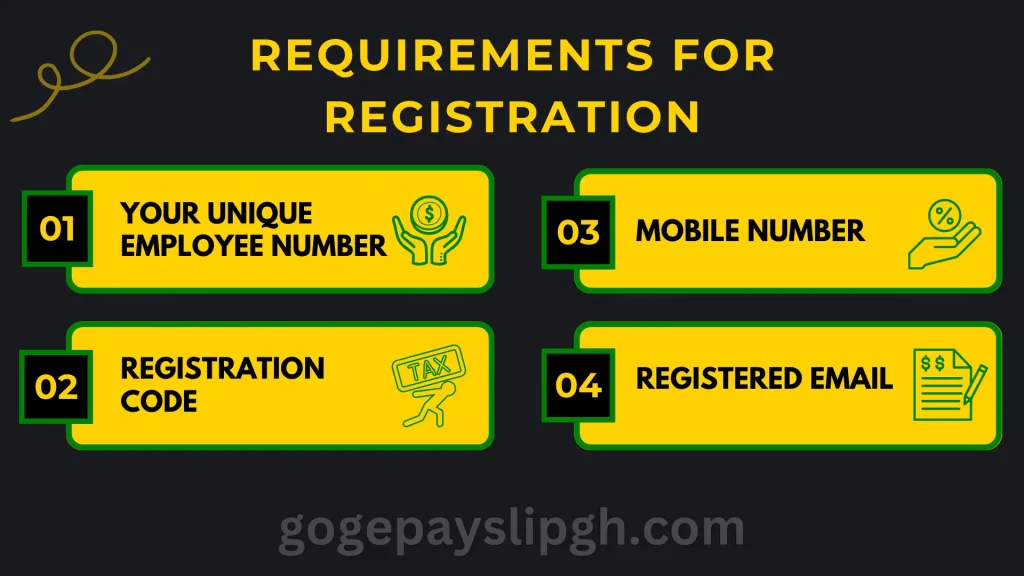
Requirements for Registration
Verification of your identity is required to register your EPayslip account. Below mentioned are the requirements for:
How to Register GoGPayslip Account?
To Register your account on the Payslip Portal, follow these below mentioned steps.
Step 1: Visit the Official GOGPayslip Website
To start the process, go to the official Payslip website. Click on this link to visit the official website.
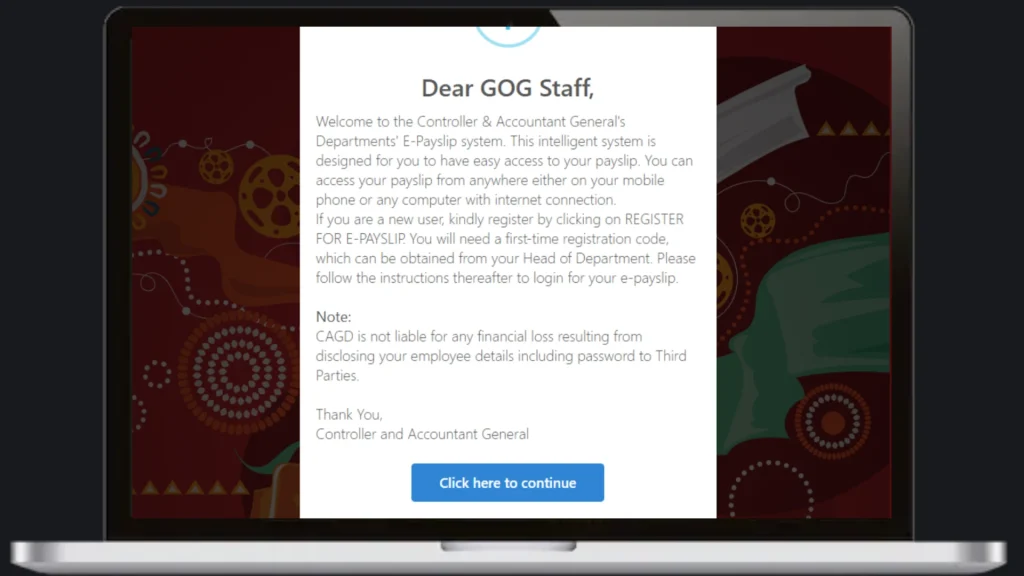
Step 2: “Dear GOG Staff” Message
On the very first page of the website you will see a welcome message by the Ghana Government. After reading this “Dear GOG Staff” message, you can continue the process.
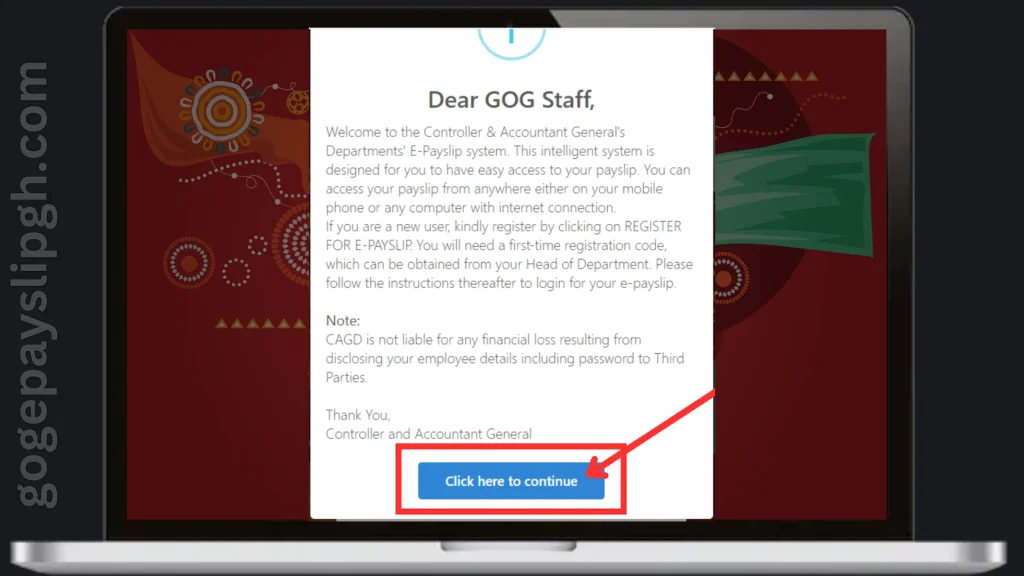
Step 3: Continue
Below the “Dear GOG Staff” message, you will see a ‘’Continue’’ button, click on this button to open the next page.
Step 4: Login Page
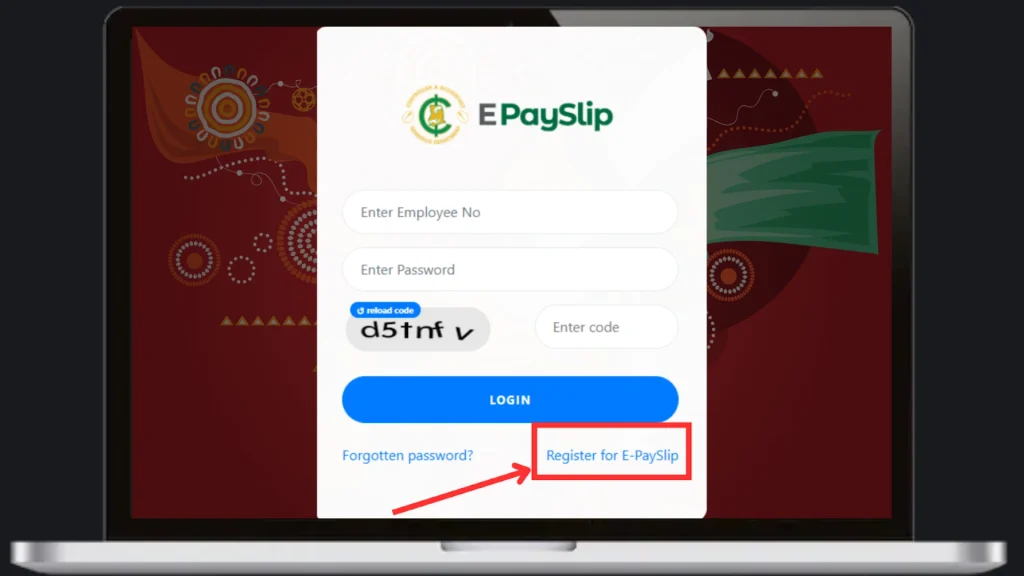
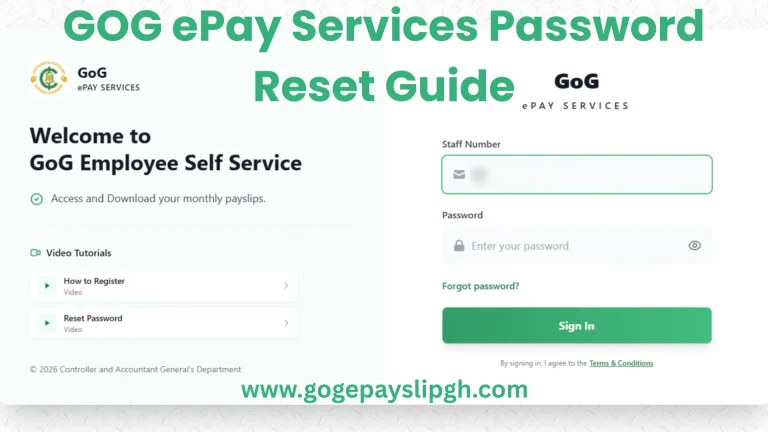
As you click on the “Continue” button, a login page will open. On this login page, check for the “Register for ePayslip” button and click on this to open the registration form.
Step 5: Registration Form
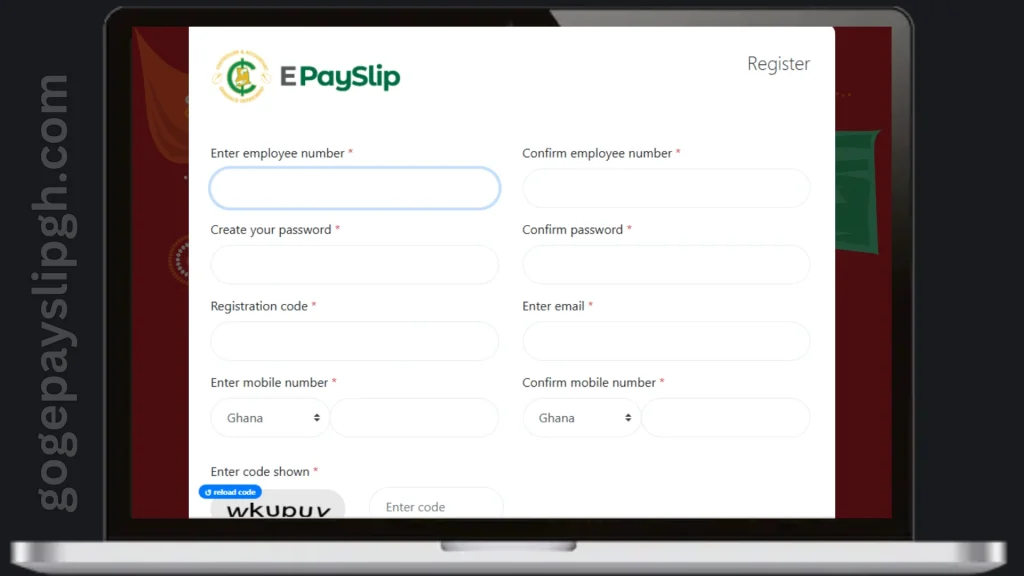
Now you are on the registration page and a registration form is in front of you. To complete the process it is necessary to completely fill this form with your personal details.
Step 6: Enter Employee Number
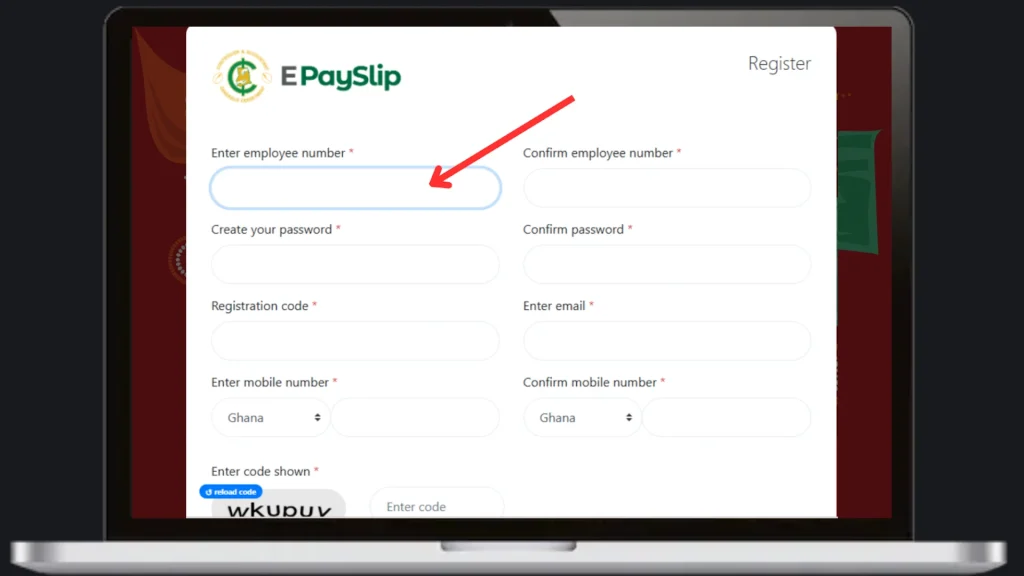
The very first box in the form is “Enter Employee Number”. Enter your unique Employee number in this box.
Step 7: Confirm Employee Number
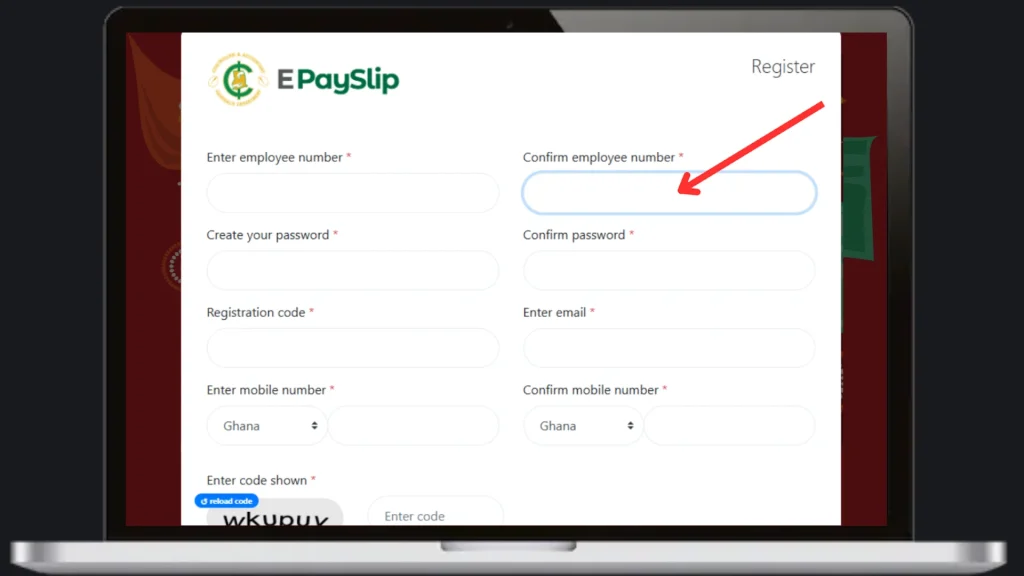
One more time, Enter your Employee number in the ”Confirm Employee Number” box to confirm your Employee number.
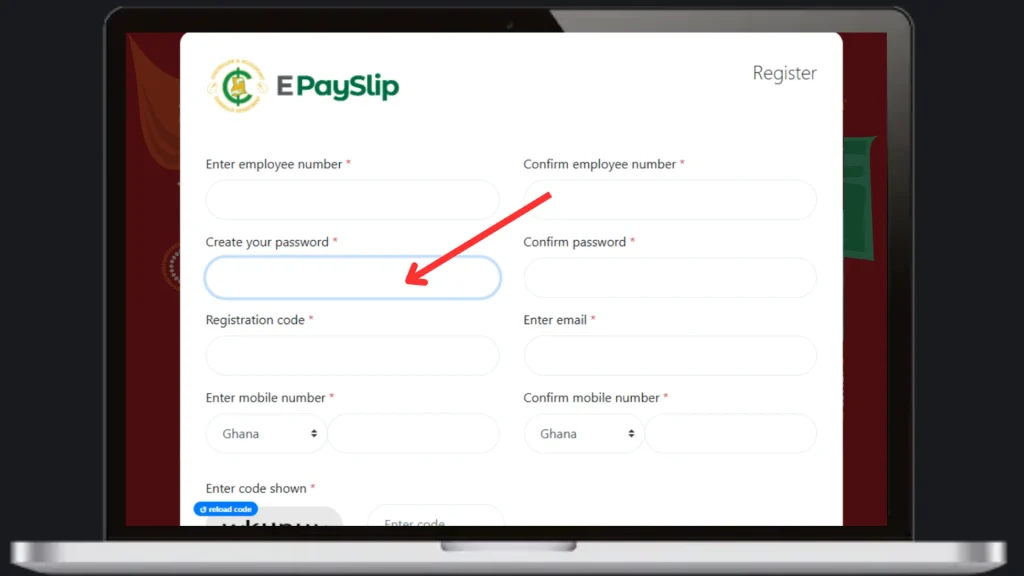
Step 8: Create your Password
The next box is about “Create your Password”. In this box create a unique and strong Password. (Mix Capital and small letters with Numbers and special letters @, #, /).
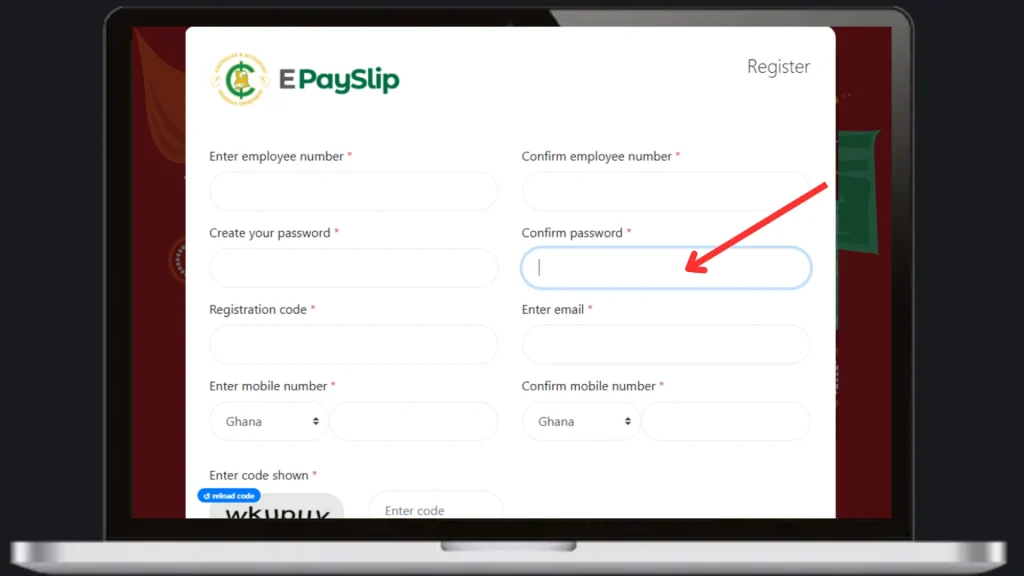
Step 9: Confirm Password
One more time, enter the same Password in the “Confirm Password” box to confirm the unique password.
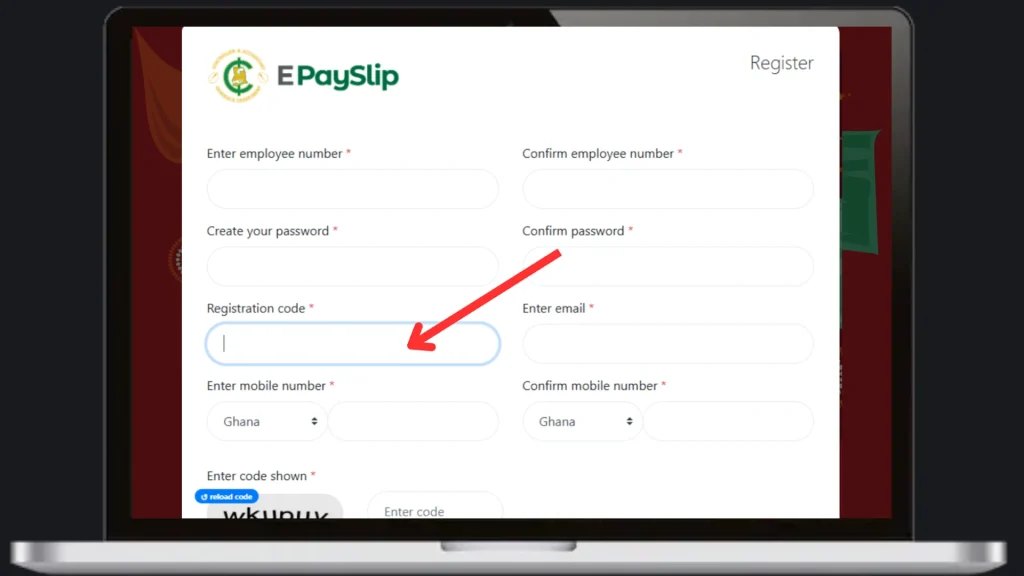
Step 10: Registration Code
Unique Registration code is given to every employee by the Validator of the department. Enter this code in the “Registration code” box.
Step 11: Enter your Email Address
In the ‘’Email Address’’ box enter your Valid email address. You will receive all your account details and activation codes on this email.

Step 12: Enter your Mobile Number
In the “Mobile Number” box enter your personal and active mobile. You will receive all login details on this number.

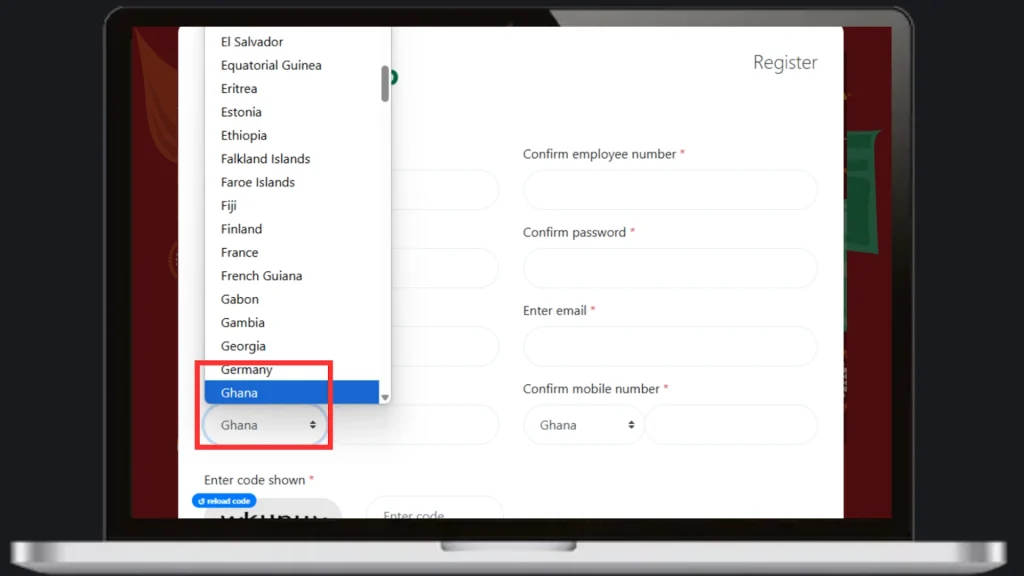
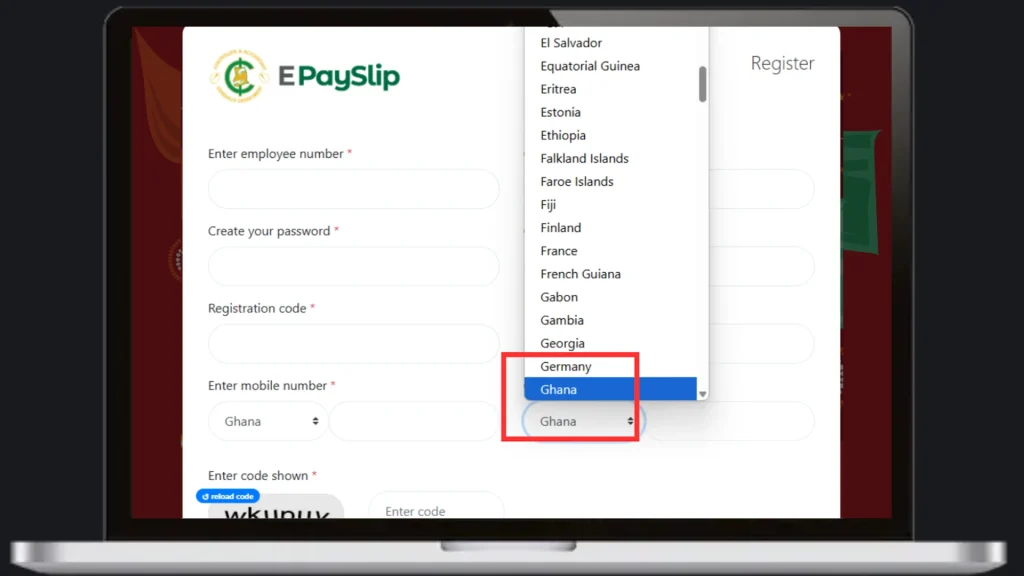
Step 13: Select Country Name
Make sure you choose Ghana as your country name. It is compulsory for registration.
Step 14: Confirm Mobile Number
Enter the same mobile number again to confirm it.
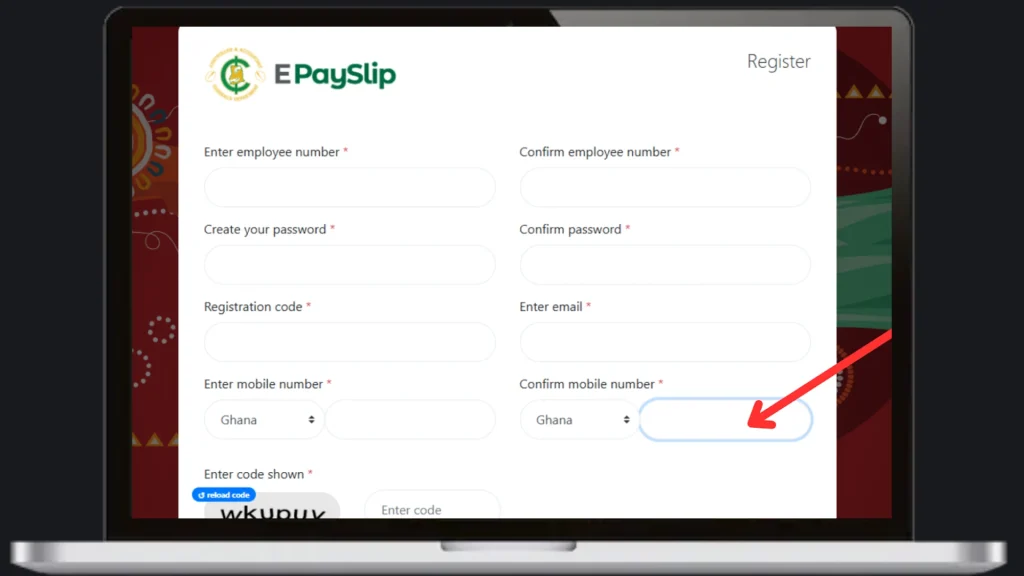
Step 15: Confirm Country Name
To confirm your mobile number make sure the country name is selected as Ghana.
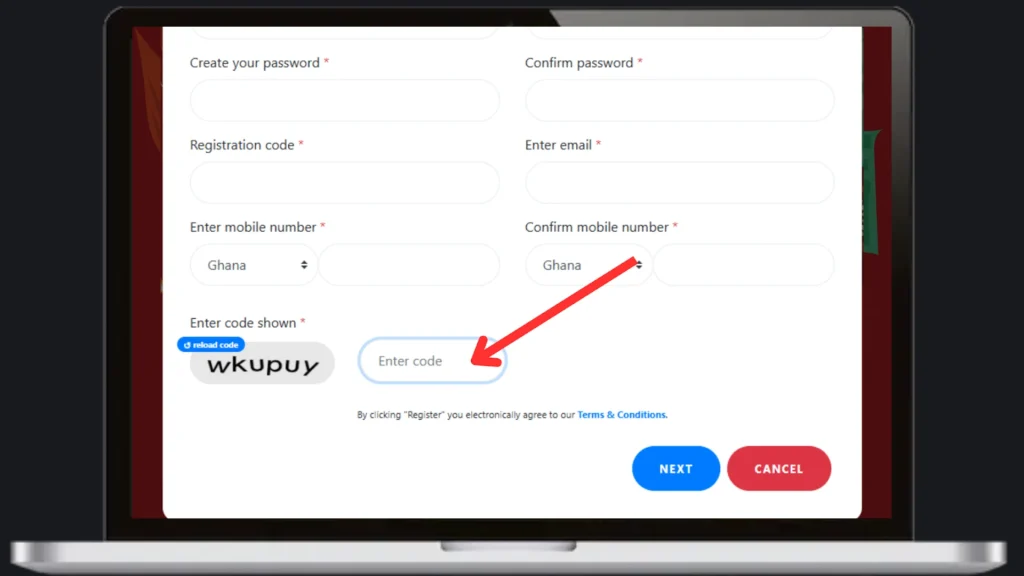
Step 16: Enter the Code
A code is shown on the screen. Enter this code into the “Enter Code” box.
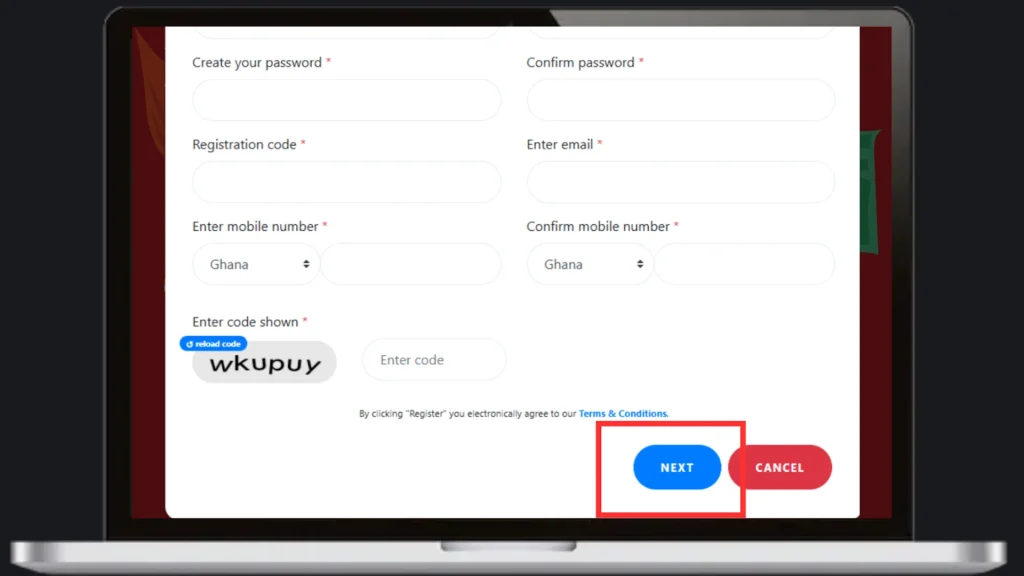
Step 17: Click “Next “
Click the “Next” button to continue the registration.
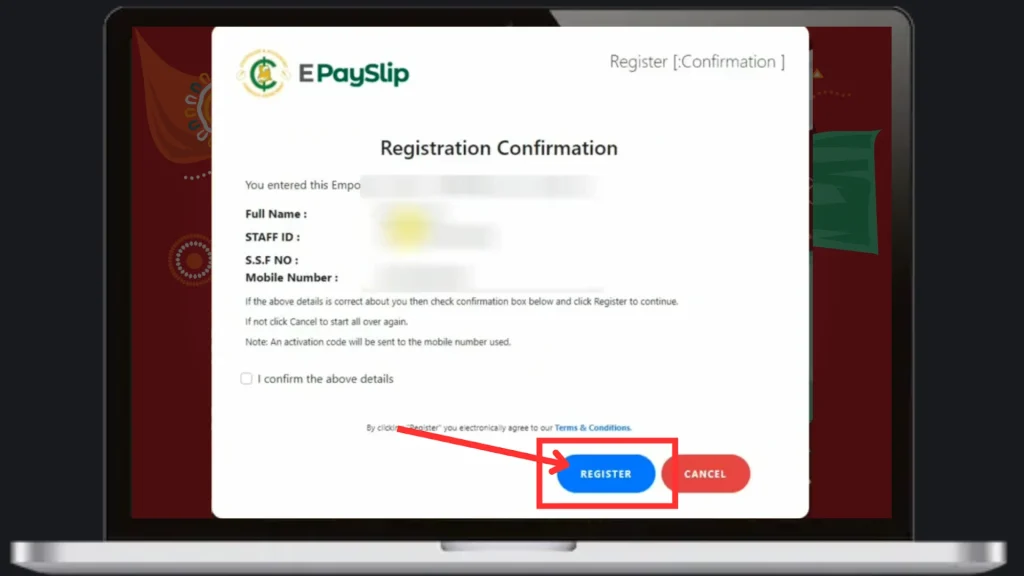
Step 18: Confirmation Page
A confirmation page will show all your details to confirm that your details are correct.
Check your details carefully and make sure your Name, Staff ID, SSF Number and Mobile number. Click on the “Register” button to If all details are correct.
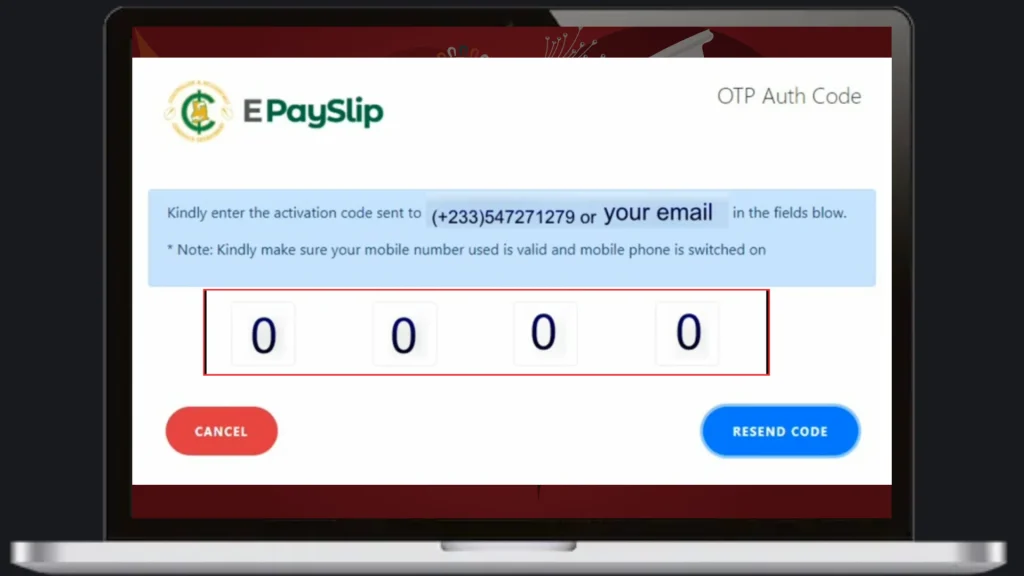
Step 19: Enter OTP Code
On your registered mobile number you will receive a 4-digit OTP code. Enter this 4-digit OTP Code in the box to move to the next page.
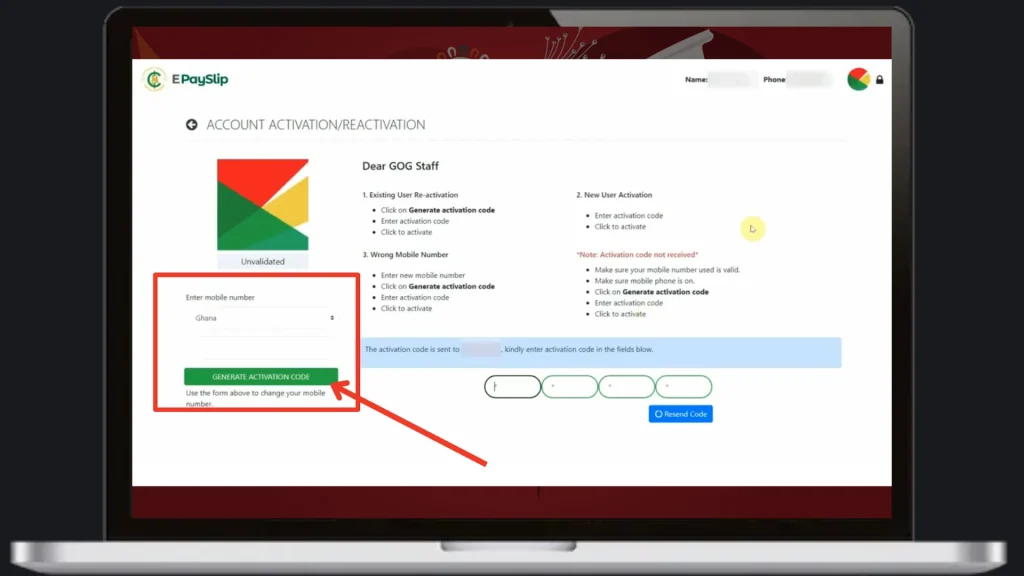
Step 20: Generate Activation Code
On the right side of the activation page, Enter your mobile number and click on the “Generate Activation code”.
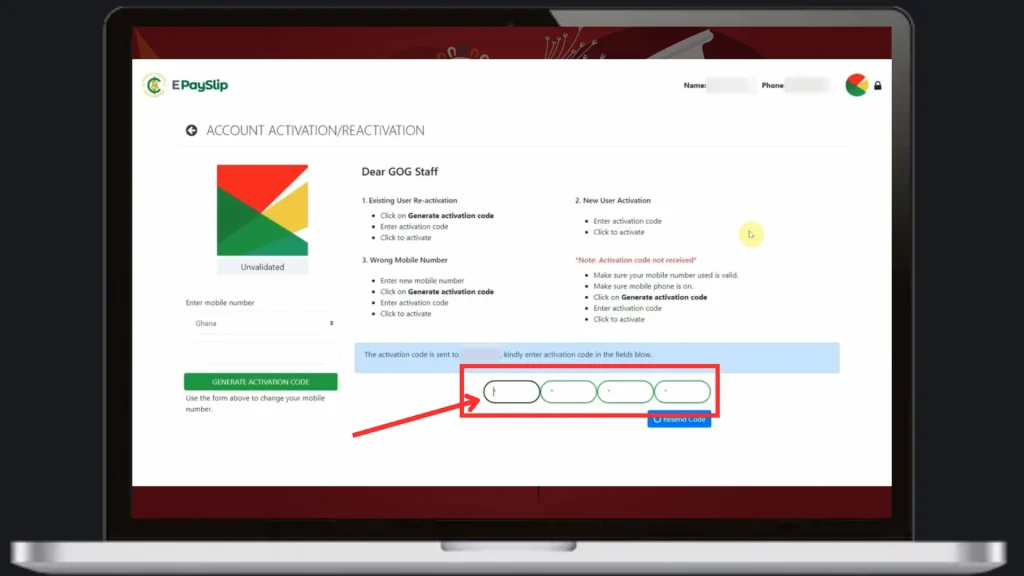
Step 21: Activation of Account
Now Activate the account by writing the 4-digit activation code sent to your mobile number and click on the “Activate” button.
Congratulations! You successfully completed your EPayslip account registration.
Note: You can follow the same process to register your GOGPayslip account via CAGD Payslip mobile app.
Security Tips
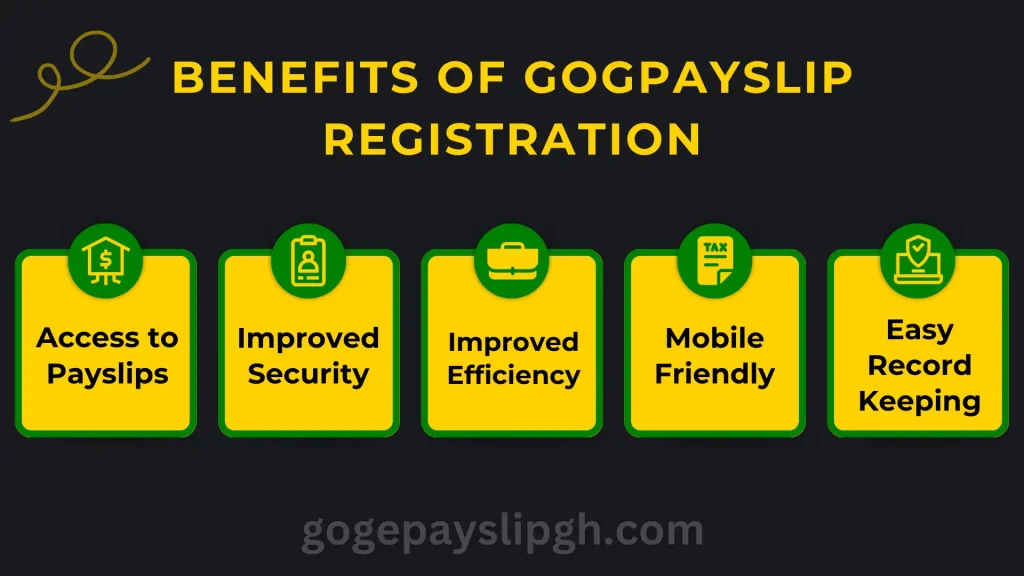
Benefits of GoGEPayslip Account Registration
Access to Payslips
Now GoG workers can easily access their EPayslips with the help of GoGPayslip portal. Employees can check and download Payslips.
Improved Security
Now your Payslips and employment data are more secure because of your unique Login and Password. If you do not provide your Login credentials to another person, no one can access your account and details.
Improved Efficiency
Due to the digital payroll system, you can get your EPayslip anytime you want without any delays and errors. You can keep the record of your payslips.
Mobile Friendly
The workers of Ghana can access their GoGEPayslip Portal with smartphones. This Mobile friendly nature of the Portal allows you to check and download EPayslip instantly.
Easy Record Keeping
You can keep a digital record of your payslips and employment details. Employees can also check and download their EPayslips of previous months which helps them to manage their finances.
GoGPayslip Registration Errors and Fixes
Error | Cause | Solution |
Invalid Employee Number | Entering an incorrect employee number. | Verify your employee number provided by your employer and try again. If the issue remains then contact (CAGD) for verification. |
Incorrect Registration Code | Entering incorrect registration code. | Obtain a valid, one time registration code from your Head of Department. |
Invalid or incorrect Email address | Trying to register with invalid or incorrect email address. | Use a different and valid email address for registration. |
Captcha code verification failed | Entering wrong Captcha code. | Carefully enter the Captcha code as displayed on GoGPayslip Portal. |
Internet problems | Unstable or slow internet connection. | Make sure you have a stable and high speed internet connection to register on Payslip portal. |
System Downtime | GoGEPayslip system is down due to scheduled maintenance or unexpected technical issues. | Wait for some time and try again later. Check for any announcement about maintenance. |
Portal Helpdesk
The Government employees of Ghana can contact CAGD officials and customer support regarding their queries on this official helpdesk of GOGPayslip.
Email : info@gogpayslip.com
CAGD Phone: +233 (0) 302983507
CAGD Postal Address: P.O. Box M79, Ministries, Accra, Ghana, GPS: GA-110-7376
Conclusion
GoGPayslip portal allows Government employees to access their payslips and manage their employment details with an easy and secure method. To use the GoGEPayslip Portal, one time registration process is compulsory. Employees can easily register their accounts by following the above mentioned steps. In case of any difficulty or problem with account registration, employees can contact customer support service and their supervisor.





4 Comments